

Ask an AI about this page
 ChatGPT
 Claude
 Perplexity
 Google AI Mode
 Microsoft Copilot
 Grok
Grok Mistral Le Chat
Check a transaction and its status
Use Transactions in the merchant dashboard to find a customer’s payment, see if it succeeded and read its details. This helps you answer “did my customer pay?” quickly.
Find a transaction
Section titled “Find a transaction”You need to be signed in to the merchant dashboard.
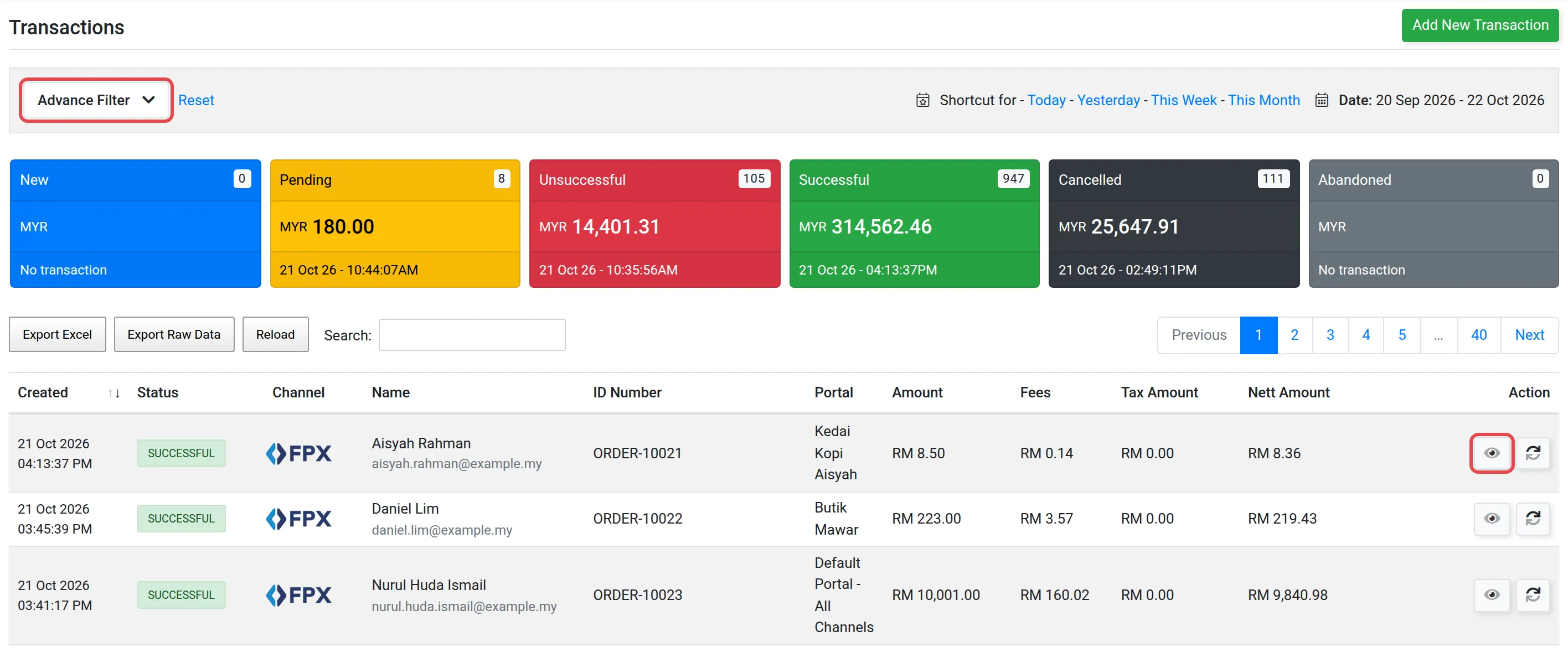
- Open Transactions.
- Use the filters to narrow the list. You can filter by the same information you see in the transaction details, such as the order number.
- Read the status column for each payment.
See the transactions of one portal
Section titled “See the transactions of one portal”Each website or app that takes payments has its own portal. To see only the payments of one portal:
- Open Transactions.
- Click Advance Filter.
- In Portal, choose the portal. Any shows the payments of all your portals.
- Click Filter.
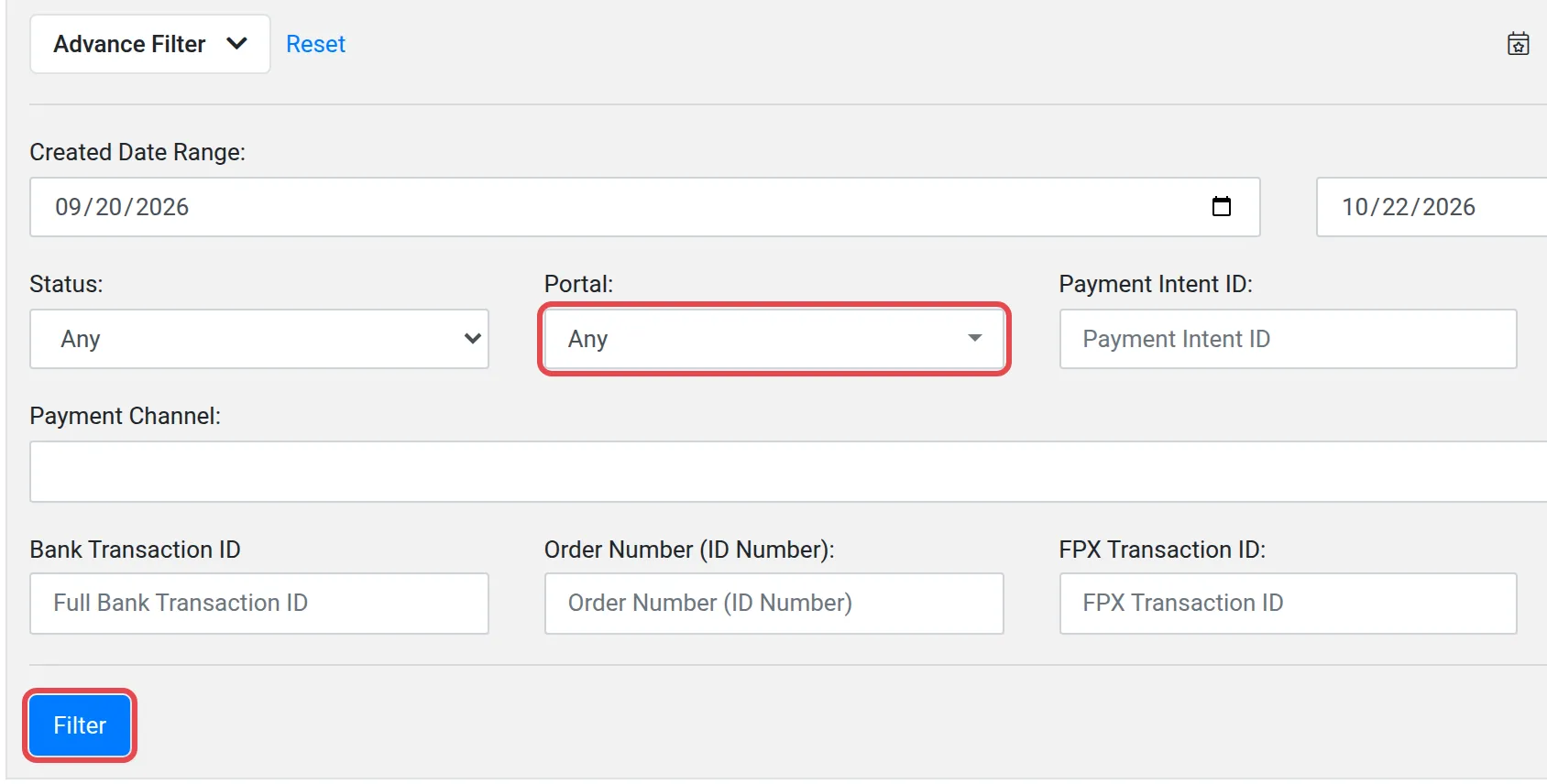
To see all your portals again, click Reset. To find a portal’s name, see Portals.
Transaction statuses
Section titled “Transaction statuses”The status tells you where a payment stands.
| Status | Code in the API | What it means |
|---|---|---|
| New | 0 | The payment has just started. |
| Pending | 1 | The payment is in progress. Check again shortly. |
| Unsuccessful | 2 | The payment did not go through, for example a bank decline or a problem in the process. |
| Successful | 3 | The customer paid. |
| Cancelled | 4 | The customer cancelled the payment. |
| Abandoned | 5 | The customer left without finishing. |
Developers can read the same codes from the API reference.
Open the transaction details
Section titled “Open the transaction details”Do this to see the answer from FPX or the bank.
- In Transactions, find the payment.
- Click the eye icon (View transaction details).
- Read the Transaction Details window. It shows the status message FPX or the bank sent.
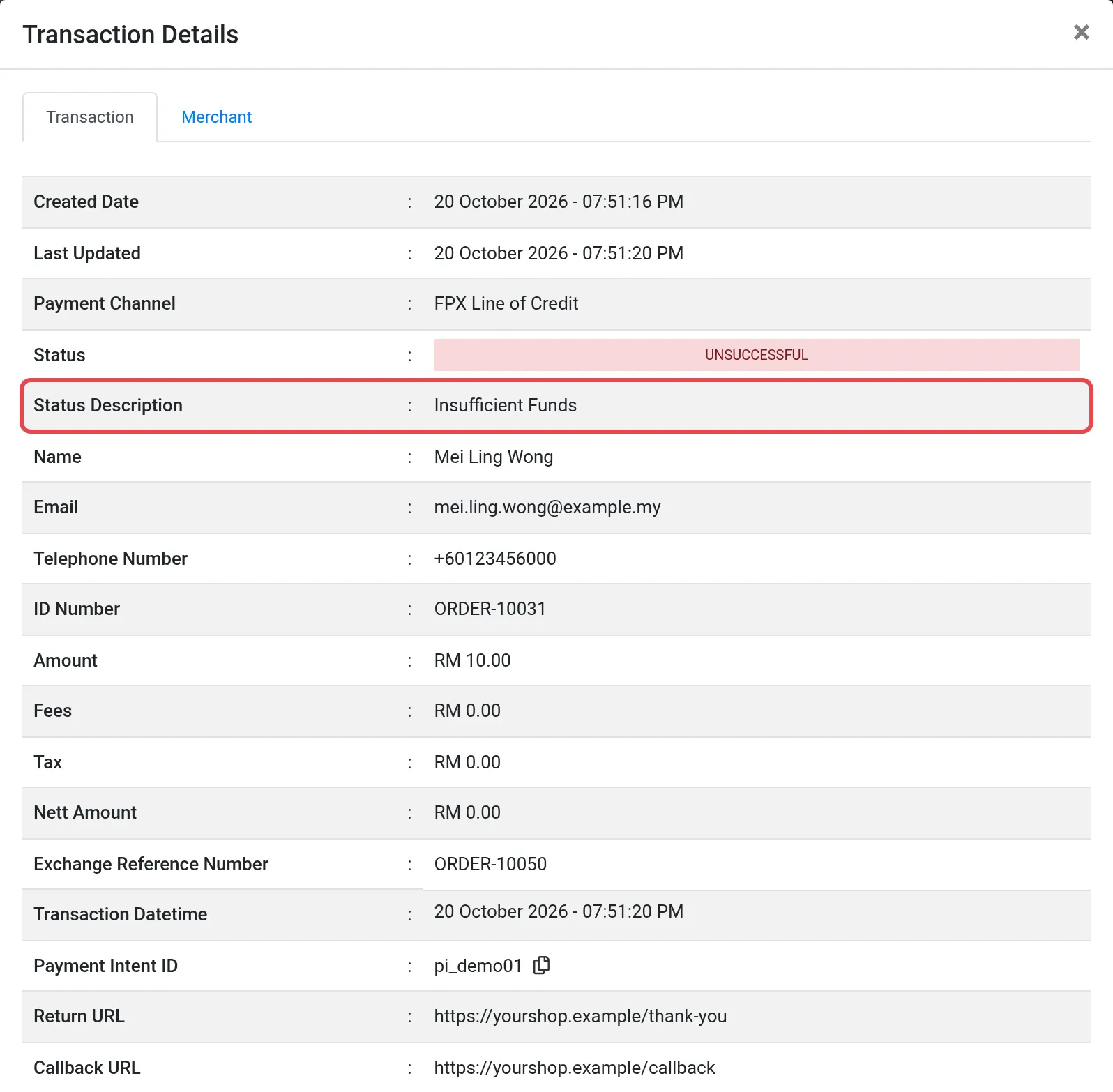
If a payment failed, see Why did my payment fail?.
See your totals for each status
Section titled “See your totals for each status”The top of the Transactions page has a box for each status: New, Pending, Unsuccessful, Successful, Cancelled and Abandoned. Each box shows the number of transactions and the time of the last one.

To keep a copy of the list, see Export transactions. Direct Debit collections are listed separately. See Direct Debit transactions.
Common issues
My customer paid but the order is not marked as paid. What do I check?
Open the transaction in Transactions and read its status. If it is Successful, Bayarcash has the payment and your shop or callback needs checking. See Callbacks and checksum. If it is Pending, wait and check again.
What is the difference between Cancelled and Abandoned?
Cancelled means the customer cancelled the payment. Abandoned means they left without finishing. See the status table on this page.
Where do I see why a payment failed?
Open the transaction details with the eye icon. The response from FPX or the bank is shown there. See Why did my payment fail?.
Was this article helpful?
Thanks for your feedback.
Sorry this didn't help. WhatsApp us and we'll sort it out with you.