

Ask an AI about this page
 ChatGPT
 Claude
 Perplexity
 Google AI Mode
 Microsoft Copilot
 Grok
Grok Mistral Le Chat
Read your dashboard
The merchant dashboard has two start pages. Home helps you collect your first payment. Dashboard shows a summary of your payments and payouts.
Home opens with the title Welcome and three steps to collect your first payment. Below the steps, cards link to help:
| Card | Use it to |
|---|---|
| Plugin | Find a plugin for WooCommerce, GiveWP, OpenCart, PrestaShop and other platforms |
| Platform Documentation | Open this help centre |
| API Reference | Read the API reference and the official SDKs |
| WhatsApp Support | Get technical help on WhatsApp |
| Send a message to Bayarcash on Facebook | |
| Telegram Channel | Read announcements and updates from Bayarcash |
Dashboard
Section titled “Dashboard”Use Dashboard to see the results of your business for a period. To set the period:
- In the top menu, choose Dashboard.
- Set the Created Date Range, or choose Today, Yesterday, This Week or This Month.
- Choose Filter. To go back to the default period, choose Reset.
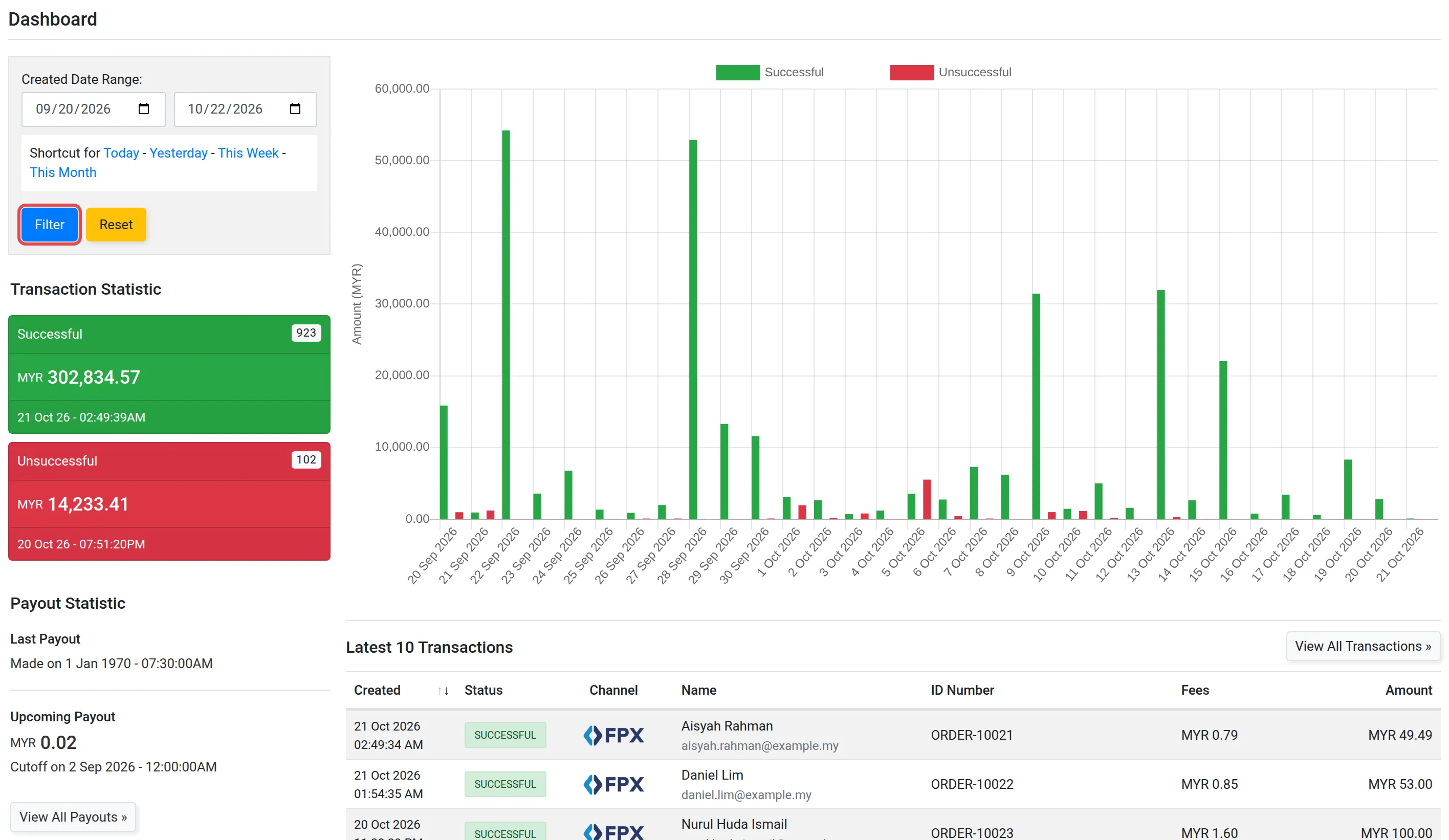
The page then shows these panels:
| Panel | What it shows |
|---|---|
| Transaction Statistic | The number and the total of Successful and Unsuccessful payments |
| Payout Statistic | Last Payout, and Upcoming Payout with its cutoff time. View All Payouts » opens the list of payouts |
| Latest 10 Transactions | Your 10 newest payments. View All Transactions » opens the full list |
For more about payouts, see Payouts to your bank account.
Common issues
How do I see the totals for this month only?
On Dashboard, choose This Month next to Created Date Range, then choose Filter.
Where do I see all my payments?
Choose View All Transactions » under Latest 10 Transactions. See Check a transaction and its status.
Was this article helpful?
Thanks for your feedback.
Sorry this didn't help. WhatsApp us and we'll sort it out with you.