

Ask an AI about this page
 ChatGPT
 Claude
 Perplexity
 Google AI Mode
 Microsoft Copilot
 Grok
Grok Mistral Le Chat
Check your webhook log
When a payment changes, Bayarcash sends a callback (a webhook) to your website. The Webhook Logs page shows each callback and its result. Use it when your shop does not update an order after a payment.
Open the webhook log
Section titled “Open the webhook log”To see the callbacks:
-
Sign in to the merchant dashboard.
-
In the top menu, choose Tools.
-
Choose Webhook Log. The Webhook Logs page opens.
-
To find one callback, choose Advance Filter. The table below gives each filter.
Filter Use it to Created Date Range Show the callbacks of a period Status Show only Success or only Failed callbacks Loggable Type Show one type of callback, for example Transaction Reference Number Find the callback for one payment
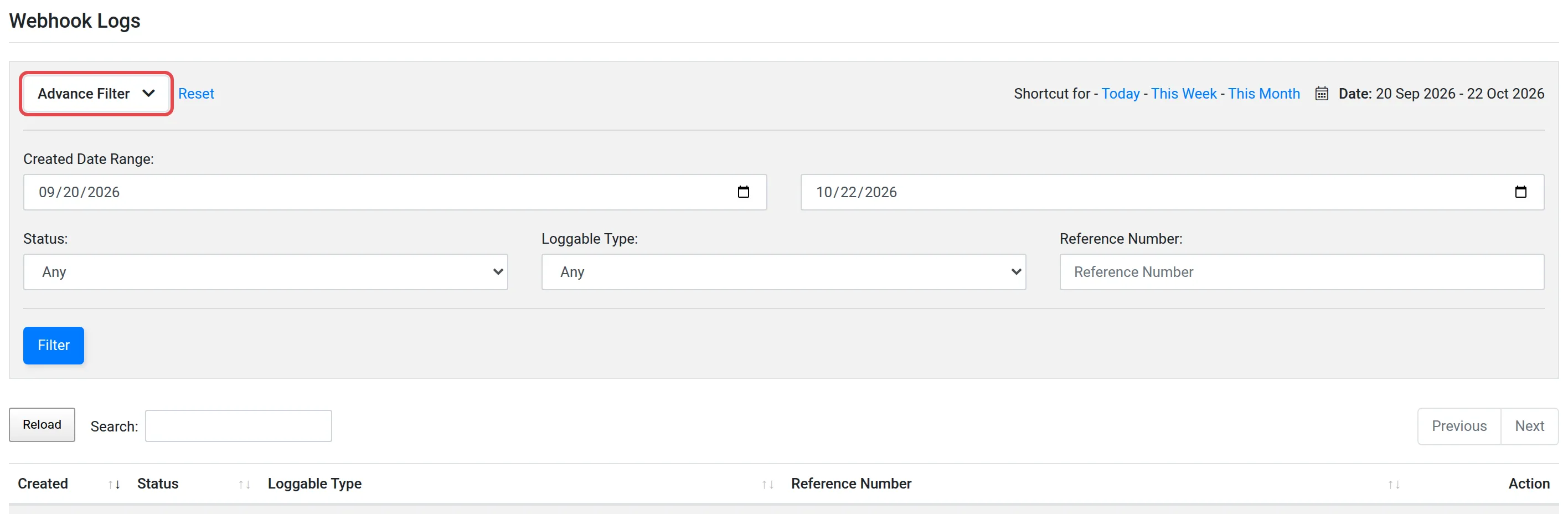
The list shows the Created time, the Status, the Loggable Type and the Reference Number of each callback.
If a callback failed
Section titled “If a callback failed”A Failed callback means that your website did not accept it. Check that your callback URL is correct and that your website is online. Then check the checksum. See Callbacks and checksum.
You can also check the payment itself in Transactions.
Common issues
A customer paid, but my shop did not update the order. Where do I look?
Open Tools → Webhook Log. Find the callback for that payment. If its status is Failed, your website did not accept the callback. See Callbacks and checksum.
How do I find the callback for one payment?
Choose Advance Filter and type the Reference Number of the payment.
Was this article helpful?
Thanks for your feedback.
Sorry this didn't help. WhatsApp us and we'll sort it out with you.