

View pageas Markdown ChatGPT
 Claude
 Perplexity
 Google AI Mode
 Microsoft Copilot
 Grok
Grok Mistral Le Chat
Ask an AI about this page
ChatGPTClaudePerplexityGoogle AI ModeMicrosoft CopilotGrokMistral Le ChatUse the Tools page
The Tools page collects the extra functions of the merchant dashboard. To open it, choose Tools in the top menu.
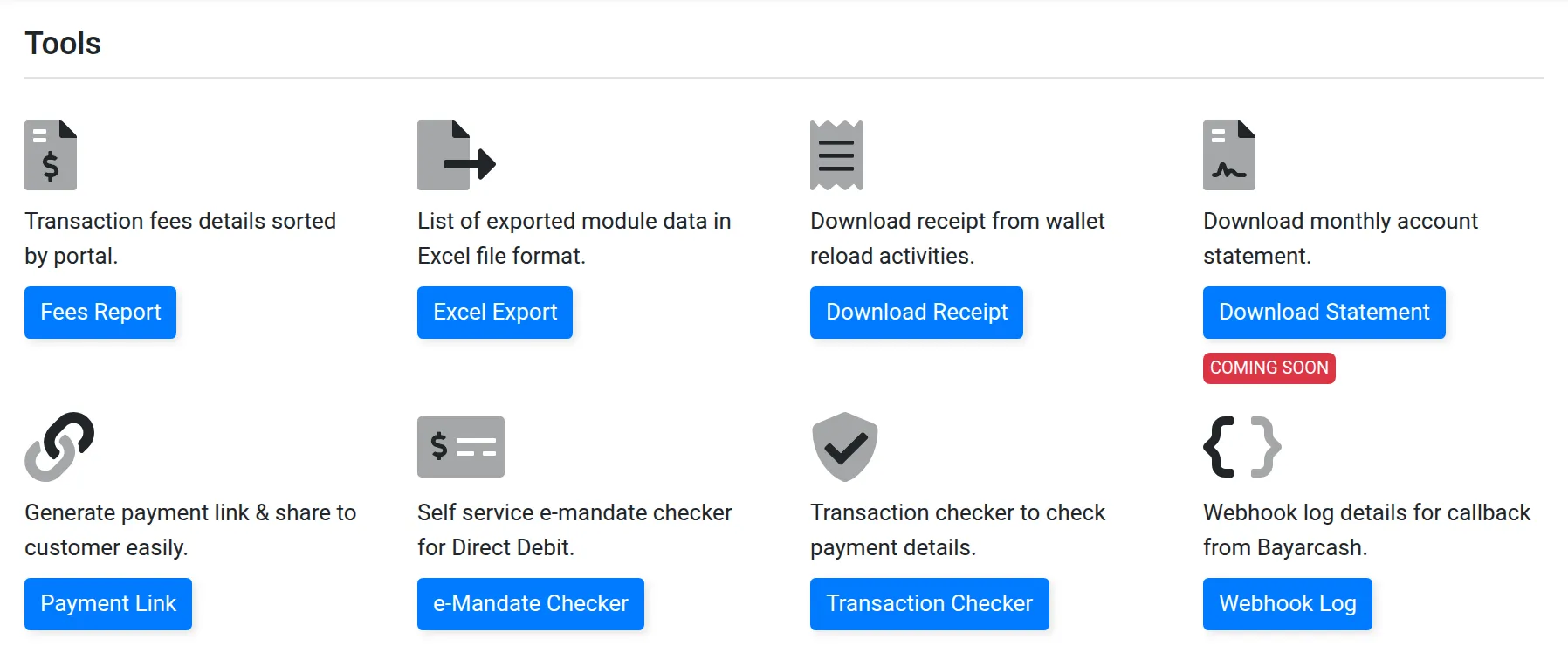
The cards on the Tools page
Section titled “The cards on the Tools page”Each card has a short text and a button:
| Button | What it does |
|---|---|
| Fees Report | Shows the fees of your successful transactions, sorted by portal |
| Excel Export | Lists the Excel files of module data that you exported. See Export data to Excel |
| Download Receipt | Shows old receipts of wallet reloads. The wallet is no longer in use |
| Download Statement | A monthly account statement. The card shows COMING SOON |
| Payment Link | Opens BCL (its old name is Bayarcash Link), to make a payment link and send it to a customer. See What is Bayarcash |
| e-Mandate Checker | Opens the public e-Mandate checker for Direct Debit. See Check a payment or an e-Mandate without signing in |
| Transaction Checker | Opens the public transaction checker. See Check a payment or an e-Mandate without signing in |
| Webhook Log | Shows the callbacks that Bayarcash sent to your website. See Check your webhook log |
Read the fees report
Section titled “Read the fees report”Use the fees report to match the fees with your own records.
- On Tools, choose Fees Report. The Successful Transaction Fees page opens.
- Read the list. It shows Created, Portal, Trx. Reference Number, Transaction Amount and Fees Amount for each transaction.
The page also shows Wallet Balance and Reload ». They are from the old wallet, which is no longer in use. Bayarcash will remove them.
For the fees of your package, see Check your package subscription.
Common issues
Where do I see the fees for each transaction?
On Tools, choose Fees Report. It lists the fees of your successful transactions, sorted by portal.
Download Statement does not open.
The card shows COMING SOON. It is not available yet.
Was this article helpful?
Thanks for your feedback.
Sorry this didn't help. WhatsApp us and we'll sort it out with you.